
WooCommerce WhatsApp Order Notifications: A Clear Setup Plan
Turn store events into accurate, useful customer updates.

On this page
WooCommerce WhatsApp order notifications should tell customers what has actually happened and what they need to do next. Start by mapping store events to plain-language messages, then test payment methods, missing information, and repeated events before enabling the workflow.
The most important work happens before the first message is sent. A status label that makes sense inside your store can mean something different to a customer. “Completed,” for example, should not automatically become “Your parcel has been delivered.”
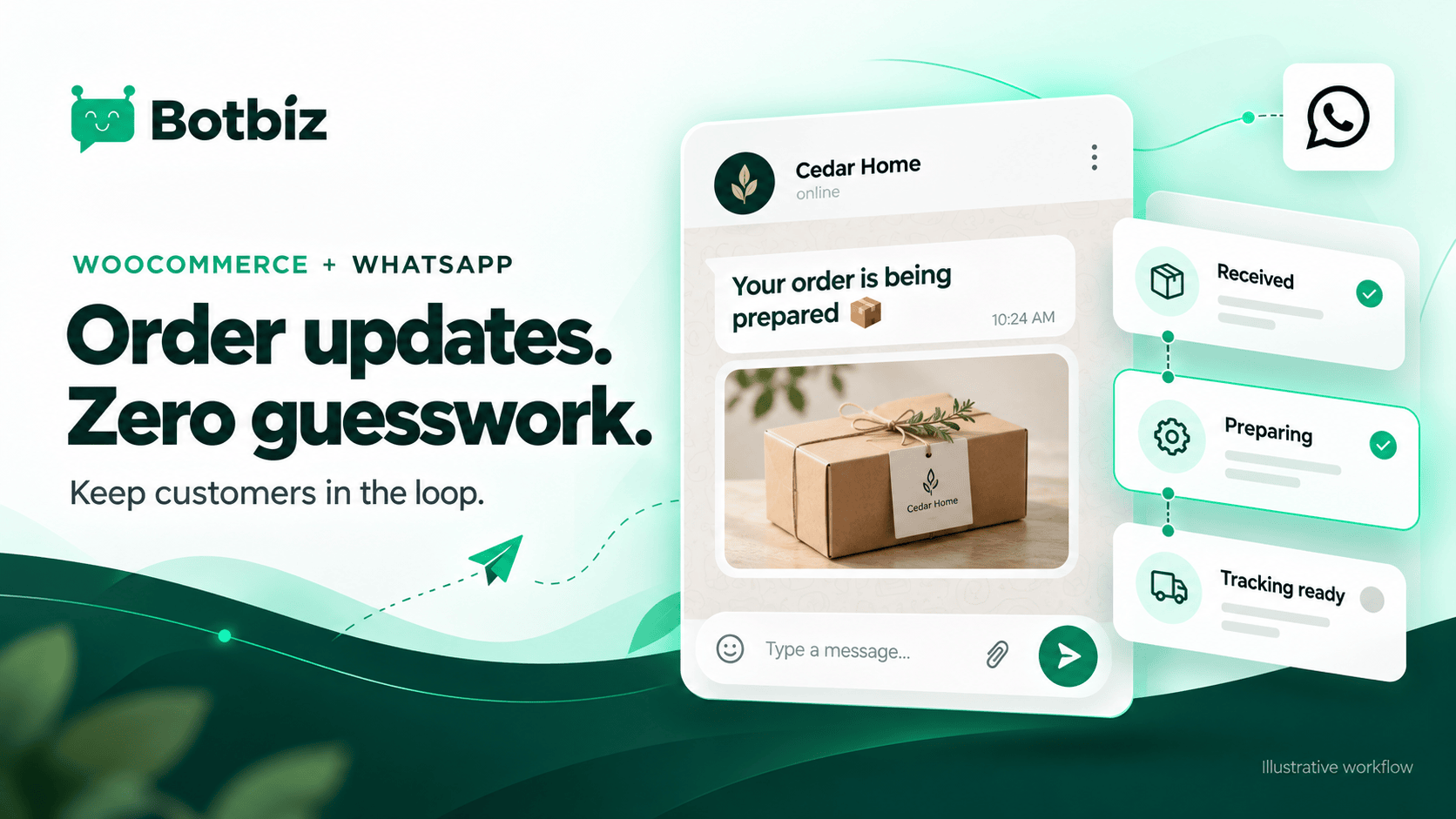
This guide explains how to plan and validate the workflow. Botbiz lists WooCommerce on its integrations page, but available triggers and fields depend on the connector and your store configuration. The examples use Cedar Home, a fictional retailer.
Translate order statuses carefully
WooCommerce’s official order-status documentation distinguishes pending payment, on-hold, processing, completed, cancelled, and refunded states. Gateways, product types, and extensions can affect how an order moves through them.
Use the statuses as inputs to your design, not as customer copy. Explain the business event that your store can confirm. A digital product and a physical parcel may both reach a completed state, but they need different messages.
| Store signal | Customer-friendly message purpose | Check before sending |
|---|---|---|
| Order submitted | Confirm receipt of the order | It is a submitted order, not a temporary checkout record |
| Payment confirmed | Explain the next preparation step | The payment method and event support that statement |
| Shipment information available | Share tracking details | The link refers to the correct parcel |
| Order cancelled | Confirm the cancellation | Refund information is checked separately |
| Refund confirmed | Explain the recorded refund | Amount and scope match the actual transaction |
This is a planning map rather than a promise that every event is exposed by a particular plugin. Confirm the exact source for each row before building the message.
Pick one notification to launch first
Choose the message that addresses a frequent support question and has a dependable trigger. For many stores, an order-received or shipment-tracking message is a sensible starting point. The right choice depends on the data your store can supply reliably.
Avoid sending an update for every internal status change. Some transitions are meaningful to staff but add little for the customer. Too many messages can make the genuinely useful ones easier to overlook.
For Cedar Home, a first draft might be:
Illustrative copy: We have received Cedar Home order CH204. You can review the order details on your order page. Reply here if you need help with this order.
The wording confirms receipt without making a payment, dispatch, or delivery claim. Use a suitable reviewed template where required, and keep operational messages focused on the transaction. Meta’s utility-message guidance provides the relevant category context.
Write the trigger, conditions, and stop rules together
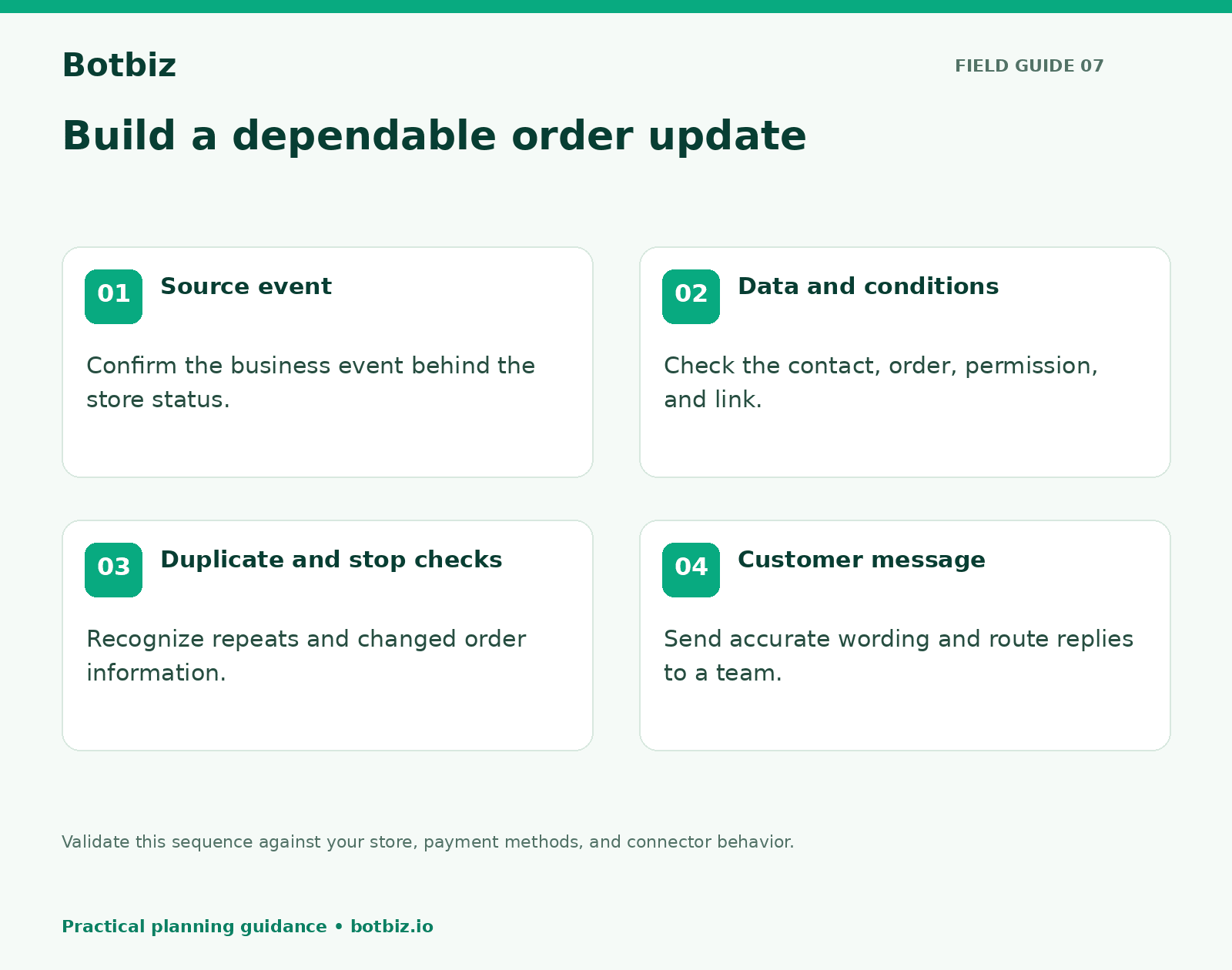
A trigger tells the workflow when to consider sending. Conditions decide whether it should send. Stop rules explain what should cancel or suppress the action after the event has been received.
For an order notification, the conditions might include a valid customer number, appropriate messaging permission, the expected store event, and a complete order reference. The action should pause for review if required information is missing.
A cancellation or a more recent order change may make a queued message inaccurate. Ask whoever configures the integration whether it checks the latest state immediately before sending, and test that behavior rather than assuming it.
Use Botbiz automation to explore how external events can connect to messages. Keep a written description of the intended behavior beside the configured workflow so later changes can be reviewed against it.
Map every variable to a reliable field
Create a field map that a support teammate can understand. Record the source of the order reference, customer name, message language, and destination link. For shipping updates, include the shipment reference and carrier link where available.
Separate required and optional fields. A missing first name can be handled with a neutral greeting. A missing order reference or an incorrect customer destination is a more serious problem and should prevent the send until resolved.
Test long values and unusual characters. A product name that looks fine in your store may be awkward in a short message. Use a summary when that is enough, and let the order page provide the complete details.
Do not put private customer information into analytics parameters or an unrestricted public link. Use your store’s appropriate customer-facing route for order information, and check that it exposes only what the recipient should see.
Test the payment methods your customers actually use
A test with one successful card payment does not prove that the workflow handles your whole store. Include manual methods and delayed confirmations if you offer them. Write down the expected message for each test before placing the test order.
| Test case | What to verify |
|---|---|
| Successful prepaid order | Correct order reference and supported payment wording |
| Pending or manual payment | No claim that payment has been received prematurely |
| Cancelled order | No later preparation message that contradicts cancellation |
| Partial refund | No statement that the entire order value was refunded |
| Multiple shipments | Tracking information does not imply one parcel contains everything |
| Empty optional field | Readable copy without visible placeholders |
Use test data and destinations controlled by your team. Keep the resulting messages as a review record, including any corrections made before launch. Do not use a real customer as an unannounced test recipient.
Prevent repeated events from becoming repeated messages
Integrations may retry an event after a timeout or receive more than one update for an order. Your design should recognize an event that has already produced the intended message.
Ask how the connector records the event and sending result. A useful implementation can distinguish a new business event from a retry of the same event. Do not use “send again” as the first response to uncertainty without checking the existing send history.
Also decide what happens during an outage. A delayed shipping update may still be useful, while an old payment reminder could be misleading after the order has moved on. Review queued work against current order information when service resumes.
Give replies a real destination
An order notification often starts a support conversation. A customer may ask to change an address, report a problem, or clarify delivery instructions. Assign a team to those replies before the workflow goes live.
With a Botbiz shared inbox, plan who owns each conversation and what context should accompany it. The agent should see the order reference and the message the customer received, then check the live store record before promising an action.
Keep a clear boundary between acknowledging a request and completing it. “We have received your address-change request” is different from “Your address has been changed.” Use the second statement only after the underlying action succeeds.
Troubleshoot from the event outward
If a message is missing, check the sequence: Did the store produce the expected event? Did the connector receive it? Did the contact pass the conditions? Were the required values present? Did the sending system return a result?
If the message arrived but was wrong, compare the source values with the final rendered copy. This helps distinguish a data problem from a template or mapping problem. Save only the troubleshooting information needed, and avoid scattering customer data across informal notes.
Launch with an owner and a review date
Give one person responsibility for monitoring the first workflow. Review send failures, customer replies, and any mismatch between the message and the store record. Make improvements before adding more event types.
Use the Botbiz integration options to discuss your WooCommerce configuration and required events. A small set of accurate notifications is a useful service; a large set of confusing updates is another support problem to solve.
Scale Your Business with WhatsApp Cloud API
Get 0% markup fees on Meta API, visual drag-and-drop chatbot builder, shared live team inbox, and 100+ app integrations with Botbiz.